Items
This section presents the list of different items, their prices and their categories. And allows you to add an item you want. In the header of this page, we have a navigation bar that allows you to navigate more easily in the parameter section
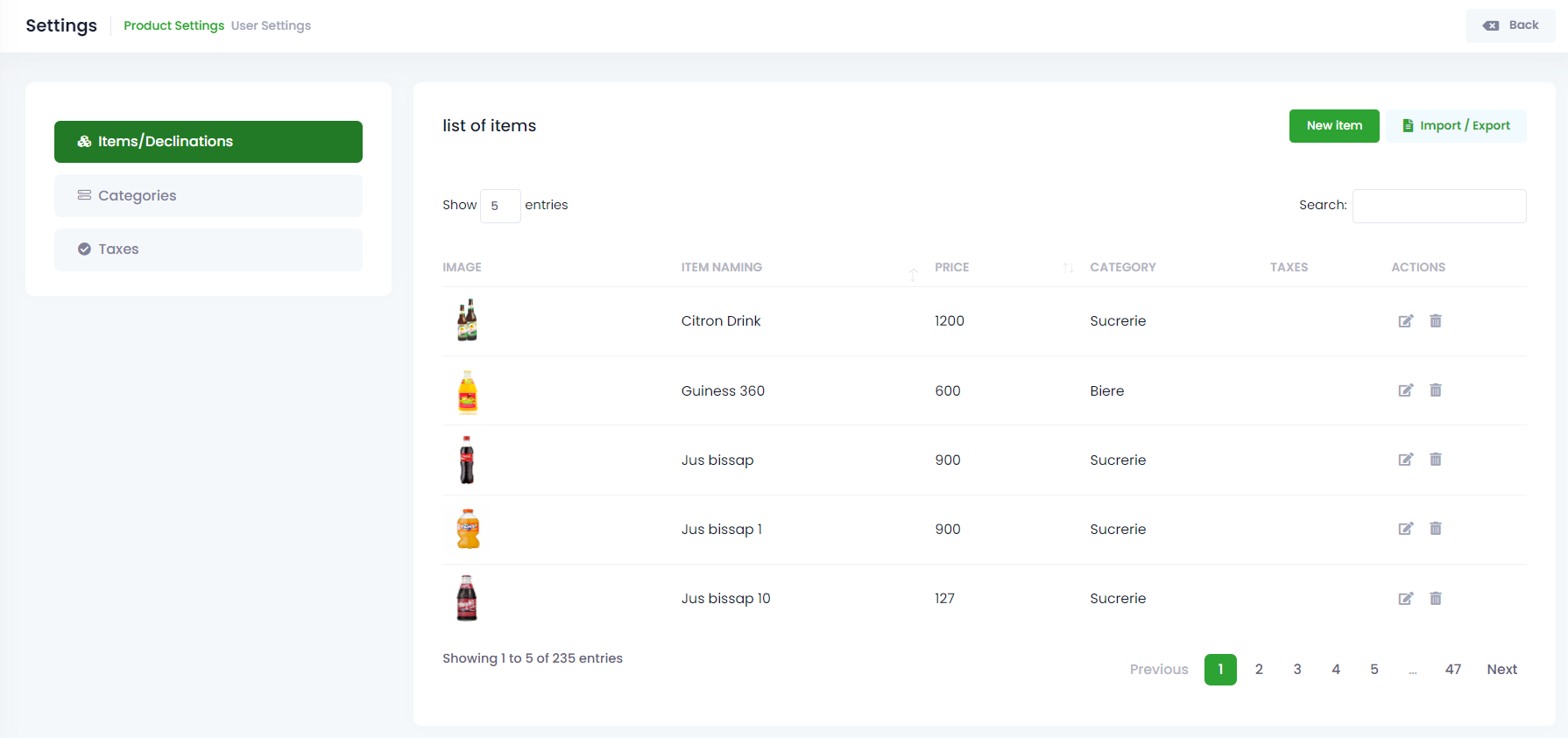
The navigation bar shows the (2) sections of the settings and allows you to navigate directly between the sections.

On this configuration page, note the section on the left of your screen that is found in the different settings that allows you to access other settings of the same section without going back to the starting settings page.

New item
To add an item, click on the (New Item) button above that will take you to the form to be filled out and whose fields (designation, reference, category and base price) are mandatory and other optional that you can skip if you wish. You can also add a photo to your article. And you could save that information by clicking “save”.
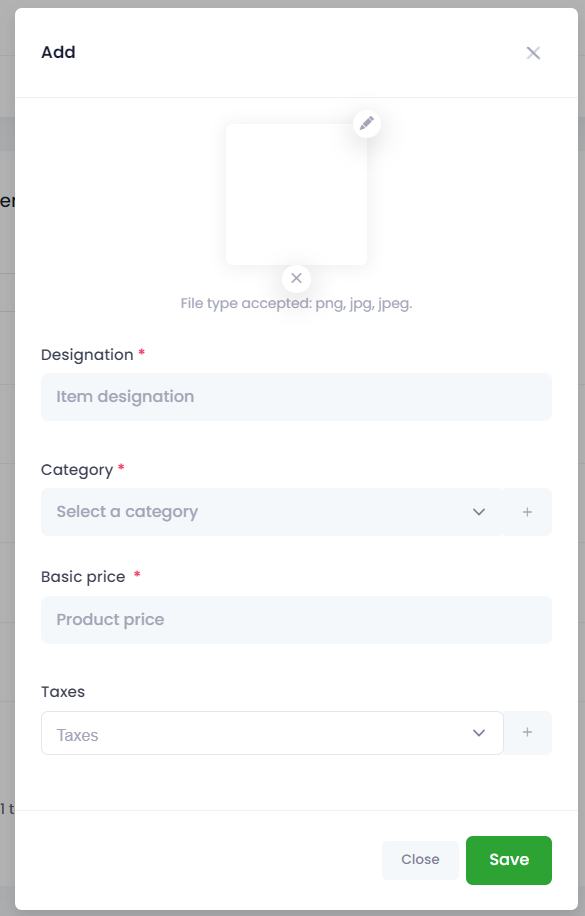
You also have the option on the list of items to modify and delete by clicking on the various action buttons in the list. However, items cannot be deleted if it is used elsewhere.
Actions
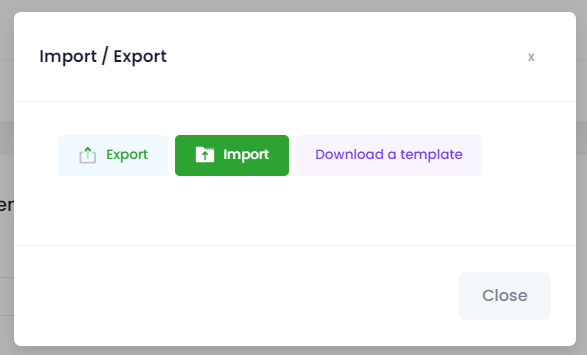
Clicking on the action button shows you a modal which will allow you to perform the action you want, such as Product export, product import and product download model